
How to use Highlight Clipper
From a new match to the Supercut in a few steps. You will find the same tips in the app: they show up the first time you open each screen, and you can see them again from Profile → Support → Show tips again.
Four steps for videomakers
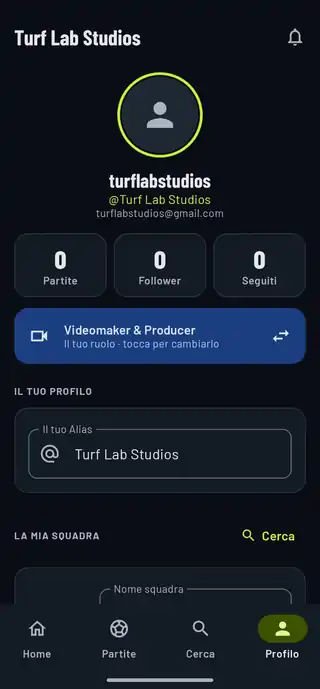
Sign in with Google or with your email, using a password or a sign-in link we send you by email. When you first sign in you pick a role: Videomaker & Producer to film matches, Viewer & Scout to watch them. You can switch any time from your Profile.
Create the match
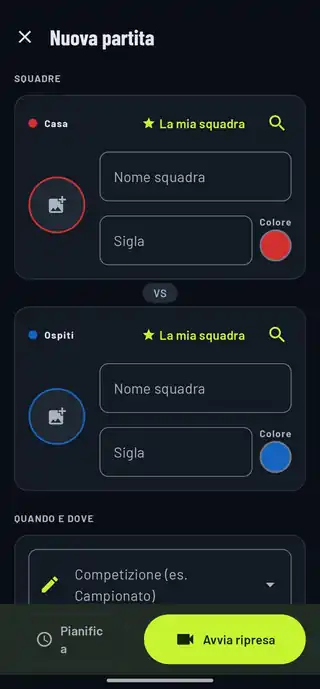
Tap New match and pick teams, logos and privacy. With a competition, periods, venue and background are remembered for you.
Film from the sideline
Hold the phone in landscape, ideally on a tripod, and follow the play. Recording keeps going even with the screen locked.
Save it with one tap
When something happens, tap CLIP, Goal or a card: the app saves the seconds that just went by. A Bluetooth remote works too.
Your Supercut is ready
After the match you get the edit with the scoreboard, in landscape or vertical for social media, ready to share or post to the Community.
Ready in a minute
- Teams and logosType the name or tap the magnifier to find the team with its official logo. The star adds your team in one tap.
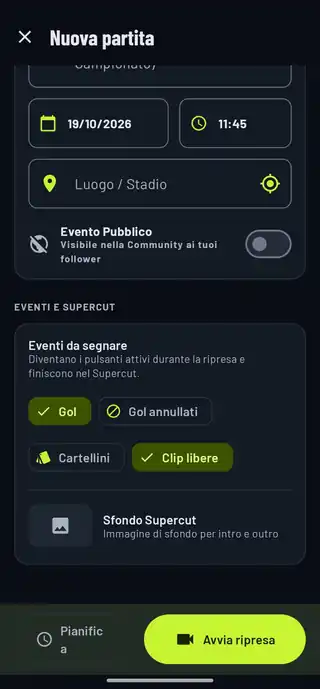
- CompetitionPick a league or tournament: periods, venue and background fill in by themselves. Create a new one from "Manage competitions".
- Public matchWhen on, the Supercut goes to the Community for your followers and stays online for 7 days. Otherwise videos stay on your phone.
- Events to trackChoose which buttons you use while recording: goals, disallowed goals, cards and CLIP. The same events end up in the Supercut.
- Start or scheduleStart recording opens the camera right away. Schedule saves the match for later: you'll find it in Matches.
The buttons on the sideline
The phone records all the time but only keeps the last few seconds. Clips are made when you tap a button.
- Kick-offTap the clock at the whistle: the time and the recording start. Pause stops the recording.
- Save a playTap CLIP when something happens: the app keeps the seconds before and after your tap. Choose how many in Profile → Clip length.
- Goals and cards+ scores a goal and saves the clip, − logs a disallowed goal. Below are the yellow and red cards. Each team has its own.
- Match log and replayOpen the match log to review, fix or undo an event. After the first clip the replay button appears too, and recording carries on underneath.
- PeriodTap the period to move to the next one, for example at half-time.
- Bluetooth remoteA selfie remote paired with the phone saves a CLIP just like the button. It works with the screen on and the app open.
- End of matchAt the final whistle tap the end button: the app saves the clips and edits the Supercut. It asks you to confirm first.
- the battery is below 30% and the phone is not charging;
- less than 1.5 GB is free, the space a full match needs;
- battery saver is on, which can slow recording down.
Watch and share
At the final whistle the match opens in its own gallery, with the Supercut and every clip.
- The SupercutEvery highlight in order, with intro and scoreboard. Tap play to watch it.
- TimelineThe match events in order: tap one to watch it again. Once the Supercut is ready you jump to its moment in the video.
- ShareSend the Supercut to WhatsApp, Instagram, TikTok or YouTube, in landscape or vertical 9:16, or save it to your Gallery. Public matches also get a web link that plays in a browser, no app needed.
- Single clipsEach clip has its own ⋮ menu to watch, share, save to your Gallery or delete it.
Viewer & Scout
- Find videomakersUse Search to find who films your team's matches, and follow them so you never miss a thing.
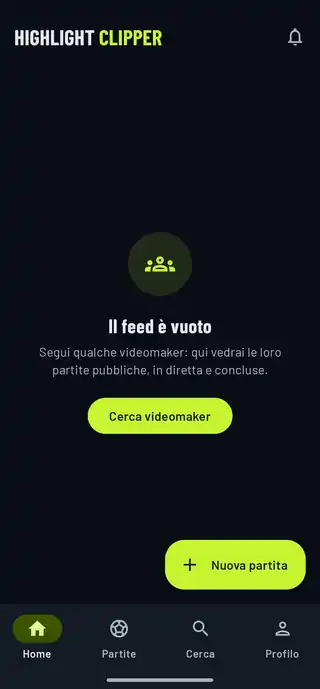
- Watch the highlightsYour Home shows Supercuts and clips from the matches of the people you follow.
- Join inLike and comment. If something is wrong, report it from the video's ⋮ menu.
Questions and answers
How do I choose how many seconds to save?
In Profile → Clip length you set, for goals, disallowed goals, cards and CLIP, how many seconds to keep before your tap (10 to 40) and after it (0 to 20), in steps of 5. The defaults are 30+10 for goals, 30+5 for disallowed goals, 20+5 for cards and 35+5 for CLIP. The "after" seconds are recorded by waiting, so the clip is ready a few seconds later. "Restore defaults" brings back the starting values.
What happens when I pause?
Pause stops both the clock and the recording, for example during a long substitution or an injury. When you resume, the footage from before the pause does not end up in the next clips, so the time printed on the video stays right. Clips you already saved are kept.
How much battery do I need?
A full match with the screen on uses a lot: start with a charged phone and, if you can, plug in a power bank. Below 30% the app reminds you before kick-off. It is also better to turn off battery saver, which can slow recording down. Recording keeps going with the screen locked.
How do I use a Bluetooth remote?
Any ordinary selfie remote will do. Pair it with the phone from Android's Bluetooth settings, then open the recording screen: each press saves a CLIP, just like the on-screen button, and does not change the volume. It works with the app open and the screen on; while the app is showing tips, the remote waits.
How does YouTube live work?
It is optional. In Profile → YouTube live turn on the switch and link your channel with "Add channel" (Brand Account channels work too). The channel must have live streaming enabled: on YouTube the first activation can take up to 24 hours. While recording, tap LIVE: the match goes on air with the scoreboard on the video and clips keep saving as usual. When the stream ends, the video stays on your channel with a chapter for each event. You need a good data connection.
How do I send the Supercut to someone without the app?
If the match is public, in the Gallery tap Share → "Web link": whoever gets it watches the Supercut in a browser, with no app or account, and sees teams and score in the preview. The link lasts 7 days and you can turn it off anytime from the same menu. It can be forwarded, so only send it to people you choose.
Can I sign in without a password?
Yes. On the sign-in screen enter your email and tap "Get a sign-in link by email". Open the link on this phone within an hour and you're in; if you can't find it, check your spam folder. If you open it on another phone, the app asks you to type your email again. You can also sign in with Google or with email and password.
How do I see the app's tips again?
In Profile → Support you will find "See the intro guide again" for the welcome cards and "Show tips again" for the tips on New match, Recording and Gallery, which come back the next time you open each screen.
I can't find the answer I need
Write to us at turflabstudios@gmail.com or use Profile → Support → Send feedback. Other questions, about cost, accounts and privacy, are on the main page.